FR Legends Not Working? Complete Troubleshooting Guide
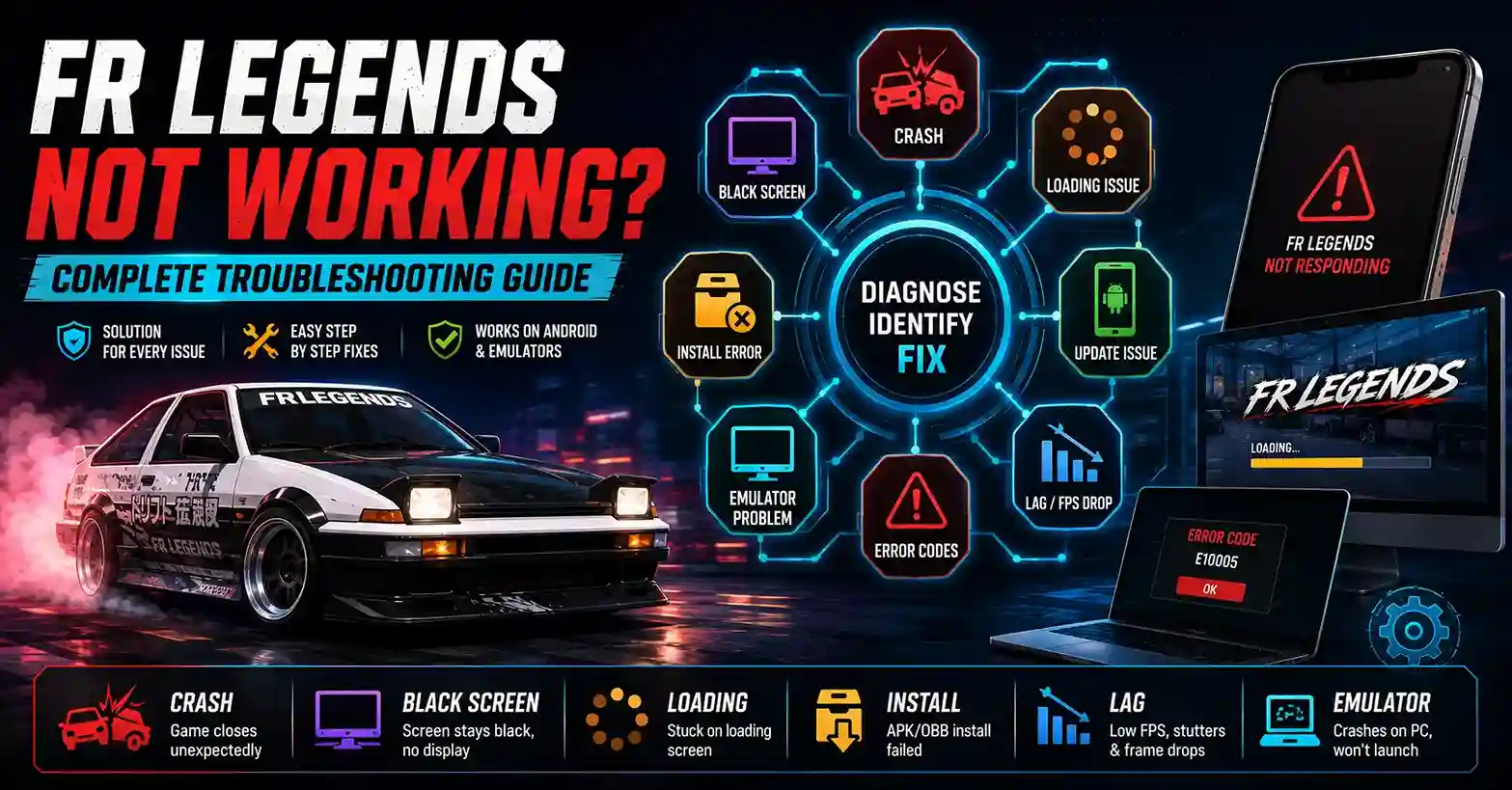
FR Legends can stop working for a long list of reasons, and the right fix depends entirely on the symptom. A phone with 500 MB of storage crashes for one reason. A modded APK on Android 14 fails for another. An emulator with the wrong graphics mode breaks in a third way. Trying random fixes usually wastes time, corrupts saves, and leaves the underlying problem in place.
This guide is the central troubleshooting hub for every major FR Legends issue. It covers launch failures, loading loops, black screens, install errors, login problems, updates, lag, emulator crashes, and device compatibility. Each section explains the symptom, points to the likely cause, and links to the deeper fix guide when you need one. Whether you run the official Play Store build, an FR Legends Mod APK, or a fresh install using How to Install FR Legends on Any Device, the diagnostic approach is the same: match the symptom first, then apply the fix.
Key Takeaways
- Identify the symptom before applying any fix: random troubleshooting usually makes problems worse.
- Installation issues and performance issues are different: the fixes rarely overlap.
- Device compatibility matters; old chipsets, low RAM, and unsupported Android versions cause a large share of problems.
- Reinstalling should be the last option, not the first; most issues clear with cache, storage, or mod fixes.
- Most problems can be fixed without losing progress if you back up saves before major changes.
- Mods are the top cause of post-update failures. Remove them first when the game breaks after an update.
Most Common Causes
At a glance, most FR Legends problems come from one of six things.
- Corrupted cache
- Low storage
- Outdated game version
- Incompatible FR Legends Mod APK
- Android compatibility issues
- Emulator configuration problems
Fix these six areas first, and most issues will resolve without a reinstall.
Why FR Legends Stops Working
Most FR Legends problems trace back to six repeat causes: a corrupted installation, an outdated game version, low storage, an unsupported Android version, emulator misconfiguration, or a damaged cache. These six cover the vast majority of support reports across phones, tablets, and PC emulators.
Understanding the actual cause is more important than trying every fix in sequence. A cache issue clears in seconds. A storage issue needs cleanup, not a reinstall. A mod conflict needs mod removal, not a fresh APK. The players who get stuck for hours are usually the ones applying the wrong fix to the right problem. Match the symptom to the cause first, and most issues resolve within ten minutes. Most FR Legends problems can be solved without factory resetting the device or permanently deleting your save data.
Quick Symptom Diagnosis
Use the table below to jump straight to the right guide. Match your symptom on the left, then follow the linked fix.
| If You See | Go To |
| The game won’t open | FR Legends Crashing Fix |
| Loading never finishes | FR Legends Stuck on Loading Screen |
| Black display | FR Legends Black Screen Fix |
| APK won’t install | FR Legends Mod APK Not Installing |
| Game crashes randomly | FR Legends Crashing Fix |
| Error code shown | FR Legends Error Codes Explained |
| Lag or FPS drops | FR Legends Lag Fix |
| Won’t launch after update | FR Legends won’t open after the update |
| Download keeps failing | FR Legends Download Failed Fix |
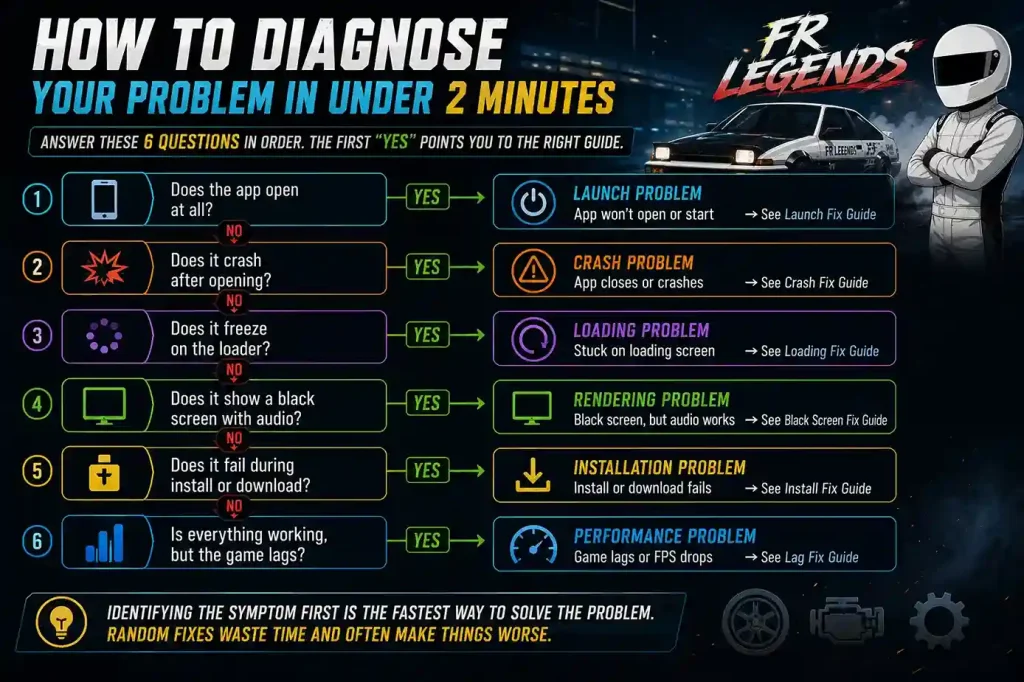
How to Diagnose Your Problem in Under 2 Minutes
Before trying any fix, answer these six questions in order. The first “yes” points you to the right guide.
- Does the app open at all? If no, it is a launch problem.
- Does it crash after opening? If yes, it is a crash problem.
- Does it freeze on the loader? If yes, it is a loading problem.
- Does it show a black screen with audio? If yes, it is a rendering problem.
- Does it fail during install or download? If yes, it is an installation problem.
- Is everything working, but the game lags? If yes, it is a performance problem.
Identifying the symptom first is the fastest way to solve the problem. Random fixes waste time and often make things worse.
FR Legends Won’t Open
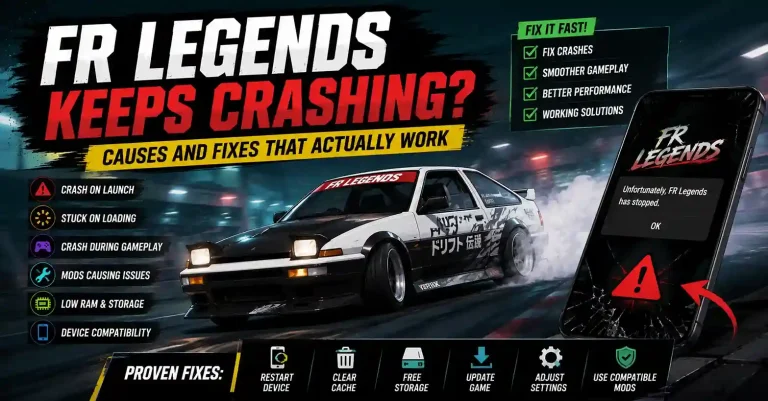
Launch failures show up in three main ways: the app closes the instant you tap the icon, it flashes and returns to the home screen, or it opens but never reaches the loading screen. All three look similar but usually come from different underlying causes.
The usual triggers are corrupted install files, a mod built for a different version, a cache that no longer matches the current build, or an Android update that broke compatibility. Emulator users add another layer; the emulator itself may be outdated, misconfigured, or missing virtualization support.
For the full step-by-step fix path, read the FR Legends Crashing Fix guide. It covers each launch symptom individually and walks through the exact fixes in order.
FR Legends Stuck on the Loading Screen
Loading screen problems are different from crashes. The app is still running, the loader is still on screen, but the bar never finishes. This is usually not a broken game; it is a game waiting on files that never arrive cleanly.
The causes are almost always cache corruption, a mismatched mod, low storage, or a partial update install. Emulator users often see this when RAM allocation is too low or the graphics mode is wrong. For the complete diagnosis and fix, read FR Legends Stuck on Loading Screen.
Black Screen Issues
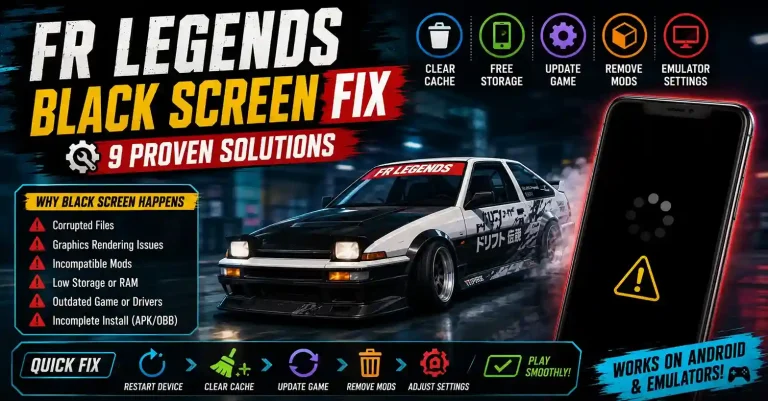
Black screen problems come in three flavours: the display stays completely black, you hear audio but see no video, or the emulator shows a black display where the game should be. All three point to the render pipeline failing, not the game crashing.
The usual causes are graphics driver problems, an OBB file mismatch, an incompatible mod, or emulator graphics mode conflicts. The fix path is different from crashes and different from loading loops, so the diagnosis matters. The FR Legends Black Screen Fix guide covers all nine proven solutions in order.
Download & Installation Problems
Download and install failures are usually the first problem players hit. The APK either refuses to finish downloading, or it downloads, but Android refuses to install it. Both look similar but need different fixes.
Download failures are almost always network, storage, or file corruption issues. The download interrupts, the file size does not match the source, or storage runs out mid-transfer. Install failures are usually Android permissions Unknown Sources disabled, Play Protect blocking the file, a signature conflict with a previous version, or a mismatched Android build.
For a clean install path, follow How to Install FR Legends on Android. If the download itself fails, the FR Legends Download Failed Fix covers every proven solution, including Play Protect handling and version compatibility checks.
Login & Account Problems
Login problems show up as failed sign-ins, sync errors that lose recent progress, or accounts that appear reset when the game loads. These are rarely caused by the game itself. The usual causes are unstable internet, Google Play Games or Game Center service issues, a region mismatch, or a corrupted local save that fails to sync.
Before assuming your account is lost, check that your saves are backed up in the cloud and that your Play Games account is properly linked. The FR Legends Login Issues guide covers full recovery steps and prevention.
Update Problems
Updates cause more support tickets than almost any other issue. Common problems include updates that fail to install, updates that install but leave the game unable to launch, mods that stop working after the update, and progress that appears reset. Most of these are compatibility issues between old files and new code, not permanent damage.
The safest path is to back up saves and remove outdated mods before every major update. The How to Update FR Legends Without Losing Progress guide walks through the full pre-update and post-update checklist.
Understanding FR Legends Error Codes
Error codes are more useful than they look. Each code points to a specific problem, server issues, file corruption, permission errors, or version conflicts, and the fix depends on which code you actually see. Applying a cache fix to a server error wastes time.
Before troubleshooting anything, note the exact code number and message. The FR Legends Error Codes Explained guide breaks down every common code and points to the matching fix.
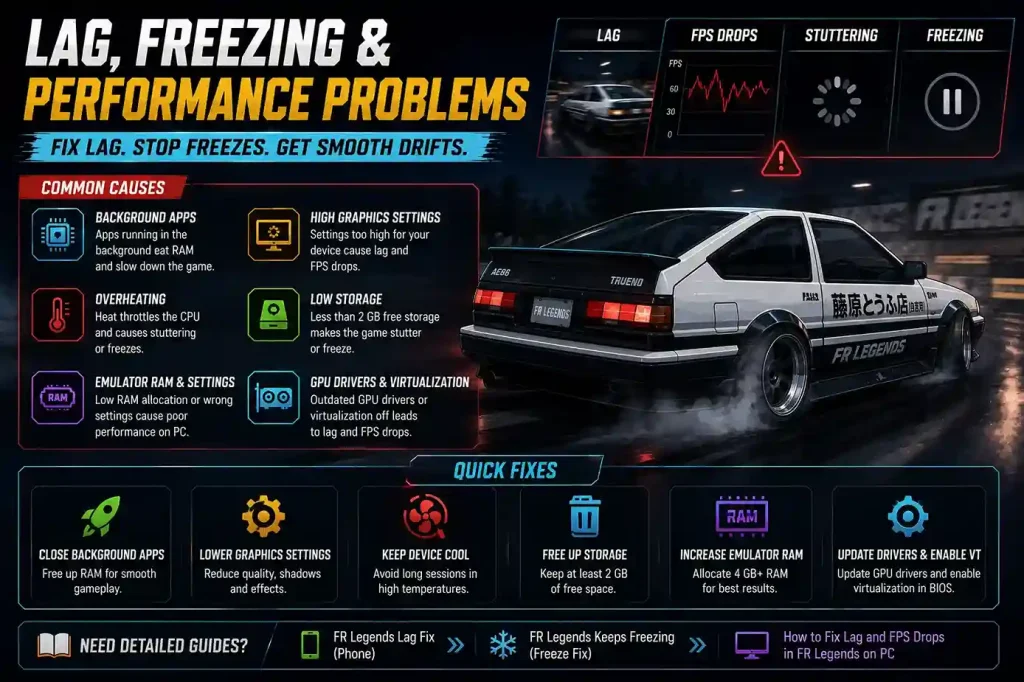
Lag, Freezing & Performance Problems
Performance problems fall into four categories: general lag, FPS drops during drift sequences, stuttering when new content loads, and full freezes that recover after a few seconds. These are usually not the same problem, even though they feel similar during gameplay.
The usual causes are background apps eating RAM, graphics settings above what the device can handle, overheating that throttles the CPU, or storage under 2 GB free. On PC, the causes shift to emulator RAM allocation, GPU driver issues, and virtualization settings.
For phone-side fixes, read the FR Legends Lag Fix guide. For freezing specifically, use FR Legends Keeps Freezing. PC players should follow How to Fix Lag and FPS Drops in FR Legends on PC for emulator-specific tuning.
PC Emulator Problems
Emulator users face a different set of problems because they run FR Legends through an extra software layer. BlueStacks, MEmu, and LDPlayer all add configuration, virtualization, and graphics complexity that phones do not have.
The most common emulator problems are controller detection failures, emulator-side crashes, graphics glitches, and input delay that makes precise drifting impossible. Most of these come from wrong graphics mode (OpenGL vs DirectX), low RAM allocation, disabled virtualization in BIOS, or an outdated emulator running a new game build.
For a clean configuration, read Best Emulator Settings for FR Legends. For input delay specifically, follow How to Reduce Input Lag in FR Legends on PC.
Device Compatibility Checklist
Older devices cause a large share of problems. A quick check against the table below tells you whether your device is the actual cause.
| Problem | Possible Cause |
| Crash | Low RAM (under 3 GB) |
| Freeze | Low storage (under 2 GB free) |
| Black Screen | GPU issue or outdated drivers |
| Lag | Weak CPU or aging chipset |
| Random restarts | Overheating |
| Install failure | Unsupported Android version |
If your device appears in two or more rows, the fix is usually lighter graphics settings, a cleaner background environment, and consistent storage cleanup, not a reinstall.
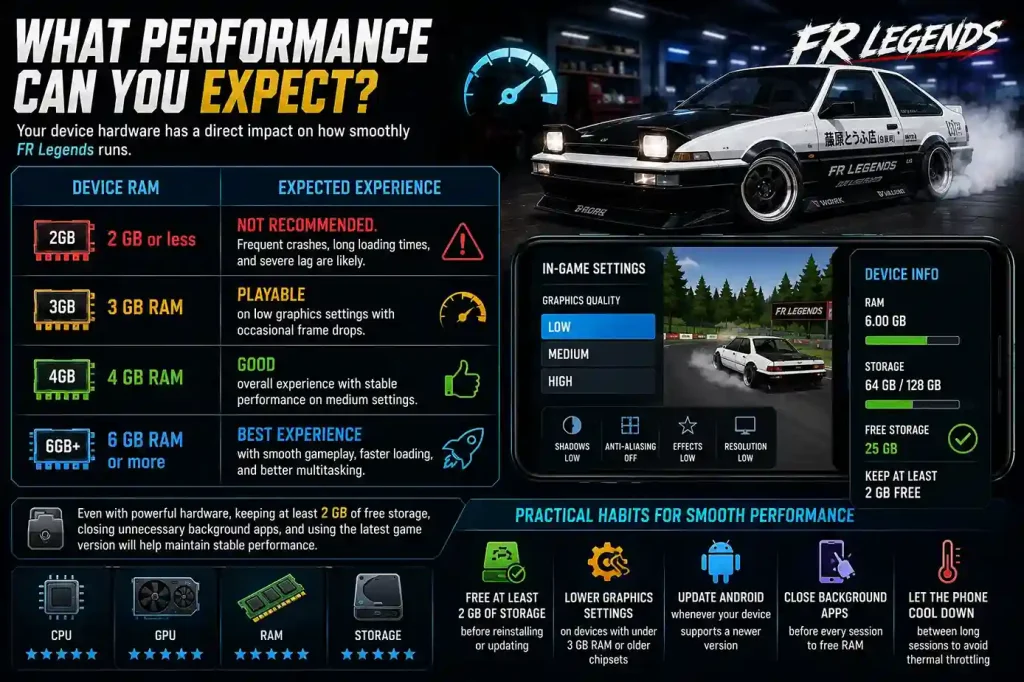
What Performance Can You Expect?
Your device hardware has a direct impact on how smoothly FR Legends runs. The table below gives a general idea of what you can expect based on available RAM. Actual performance may vary depending on your processor, Android version, and background apps.
| Device RAM | Expected Experience |
| 2 GB or less | Not recommended. Frequent crashes, long loading times, and severe lag are likely. |
| 3 GB RAM | Playable on low graphics settings with occasional frame drops. |
| 4 GB RAM | Good overall experience with stable performance on medium settings. |
| 6 GB RAM or more | Best experience with smooth gameplay, faster loading, and better multitasking. |
Even with powerful hardware, keeping at least 2 GB of free storage, closing unnecessary background apps, and using the latest game version will help maintain stable performance.
A few practical habits help older devices run FR Legends more reliably:
- Free at least 2 GB of storage before reinstalling or updating the game
- Lower graphics settings on devices with under 3 GB RAM or older chipsets
- Update Android whenever your device supports a newer version
- Close background apps before every session to free RAM
- Let the phone cool down between long sessions to avoid thermal throttling
Before Reinstalling FR Legends
Reinstalling is a last resort, not a first move. Every reinstall risks progress loss, wastes download bandwidth, and often leaves the underlying problem in place. Cache issues, storage issues, mod conflicts, and permission errors are all fixable without touching the install.
Before you uninstall anything, run this checklist:
- ✓ Restart the device to clear stuck processes
- ✓ Clear game cache (saves stay intact)
- ✓ Check that at least 2 GB of storage is free
- ✓ Update the game to the latest version
- ✓ Restart the emulator if you play on PC
- ✓ Verify your internet connection is stable
- ✓ Back up save data through Play Games or by copying the game folder
If the problem persists after all seven steps, then reinstall, cleanly, with the correct APK and OBB placement.
Quick Troubleshooting Roadmap
Follow this path from top to bottom. Stop at the first section that matches your symptom.
Game Won’t Open
↓
Loading Problem
↓
Black Screen
↓
Error Code
↓
Lag / Freeze
↓
Update Issue
↓
Reinstall (Last Resort)
Each stage points to a specific fix guide. Do not skip stages. Applying a lag fix to a launch problem or a reinstall to a mod conflict usually makes things worse.
If your symptom changes after applying a fix, restart the diagnosis from the beginning instead of jumping randomly between solutions.
FAQs
Why is FR Legends not working on my phone?
Usually low storage, a bad mod, a corrupted cache, or an outdated version. Identify the exact symptom (crash, freeze, black screen) first, then apply the matching fix.
Why does FR Legends keep crashing?
Low RAM, storage under 2 GB, an incompatible mod, or a broken update file. Restart, clear cache, remove mods, and free storage before reinstalling.
Why is FR Legends stuck on the loading screen?
Cache corruption, a mismatched mod, or a partial update install. Clear the cache first, then remove any recently installed mods.
Why do I only see a black screen?
Graphics rendering failure, usually from an incompatible mod, missing OBB data, or an emulator graphics mode conflict. Switch graphics mode or remove the mod.
Why won’t the APK install?
Unknown Sources is disabled, an old version is blocking the signature, Play Protect is blocking the file, or the APK is corrupted.
Can reinstalling fix FR Legends?
Sometimes, but only after simpler fixes fail. Clear cache, free storage, and remove mods first; reinstall is a last resort.
Will I lose my game progress?
Not if you back up first. Sync your Google Play Games or Game Center account, or copy the game folder from internal storage before any reinstall.
Why is FR Legends lagging after an update?
New updates often add graphics that older devices cannot handle. Lower graphics settings, close background apps, and free storage before playing.
What should I check before reinstalling the game?
Restart, clear cache, check storage, update the game, restart your emulator, verify internet, and back up saves. Reinstall only if all seven fail.
Why does FR Legends work on one device but not another?
Different Android versions, different chipsets, different mod setups, and different storage levels all change how the game behaves. Diagnose each device on its own.
Conclusion
Most FR Legends problems become straightforward once the correct symptom is identified. The players who spend hours stuck are usually applying random fixes to the wrong problem. Match the symptom: first launch failure, loading loop, black screen, install error, login issue, update problem, lag, or emulator crash, then follow the matching guide.
Troubleshoot methodically. Clear the cache before reinstalling. Remove mods before assuming the game is broken. Back up saves before every major change. Whether you run the official version or an FR Legends Mod APK, the process is the same. For clean installs, follow How to Install FR Legends on Any Device. For anyone weighing whether a modded build is worth using at all, read the Is FR Legends Mod APK Safe? Complete Security Guide: First, safety and stability are worth more than any unlocked feature.
Start with the symptom. Follow the linked guide that matches it. Avoid random fixes and repeated downloads. Reinstall only when everything else has failed. That simple order is what separates the players who fix FR Legends in ten minutes from the ones who spend all day chasing the wrong problem.